
Connect your USCIS account
Link your USCIS online account so ClerqLegal retrieves every new receipt, RFE, biometrics, and decision notice as soon as it is issued.
Before you start
The USCIS integration is an add-on to your plan. You will need the ClerqLegal browser extension installed, the representative account your firm uses at my.uscis.gov, and access to the phone or email that receives its two-step verification codes.
-
Turn on Skip PDF download in the extension
Open the ClerqLegal browser extension, tick Skip PDF download, then click Save settings. This is needed only the first time you connect, so the initial fetch can pull in your existing notices quickly.
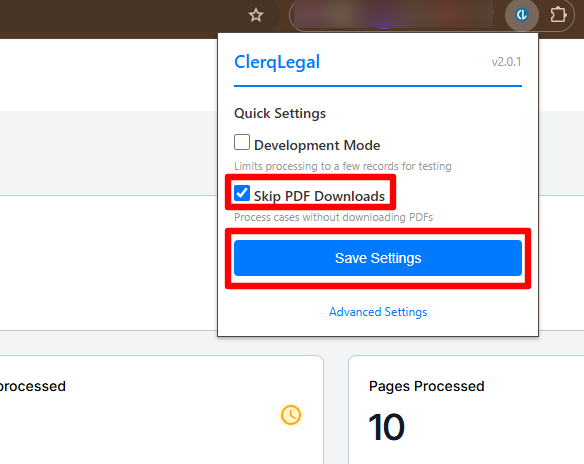
ClerqLegal extension: tick Skip PDF download and click Save settings. -
Open the USCIS tab in ClerqLegal
In ClerqLegal, open the USCIS tab from the sidebar.
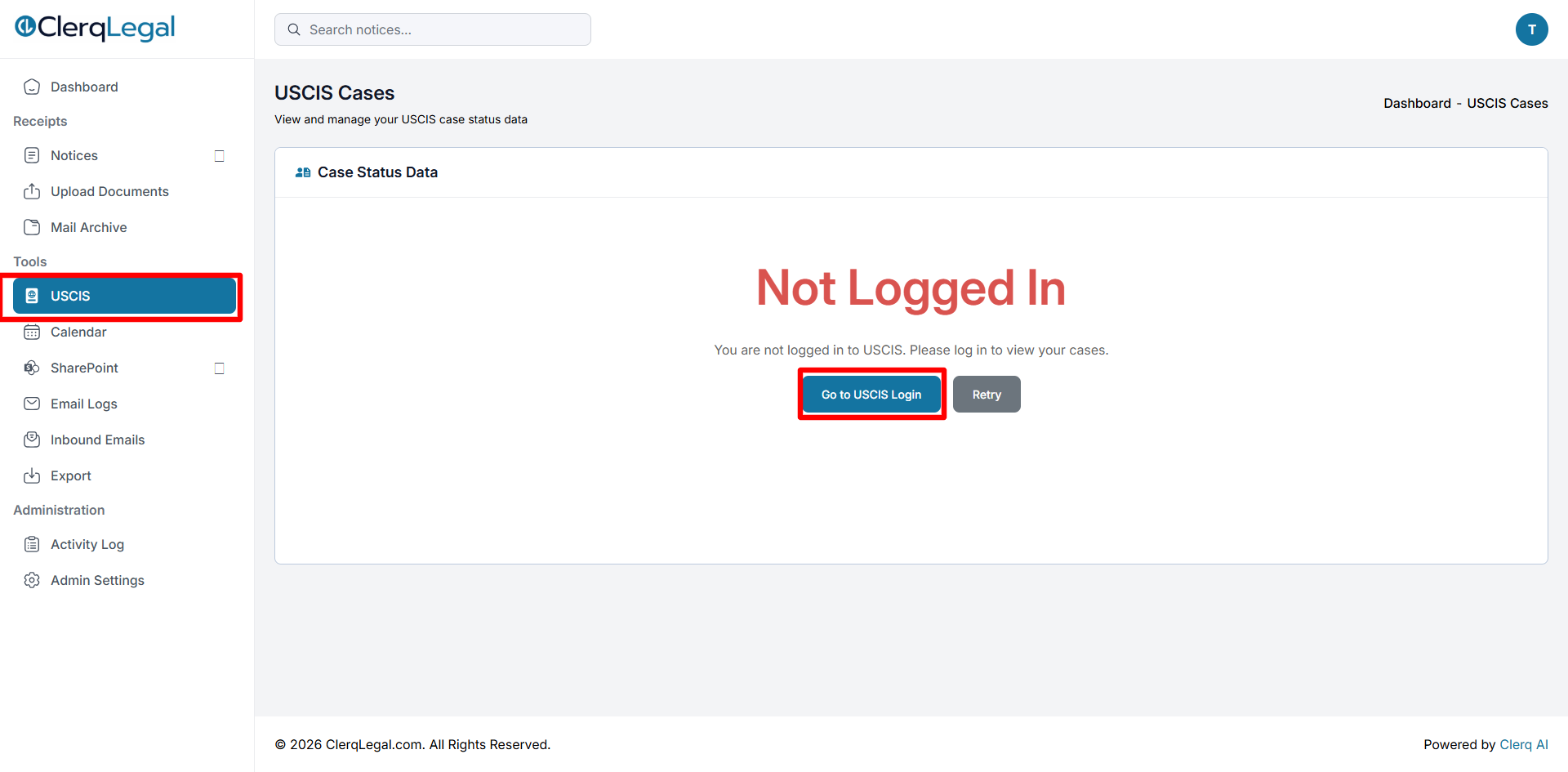
ClerqLegal sidebar: open the USCIS tab. -
Log in to your USCIS account
Sign in with the email and password for your firm’s USCIS online account. If USCIS asks for a two-step verification code, enter the code sent to the phone or email on the account, or the current code from your authenticator app.
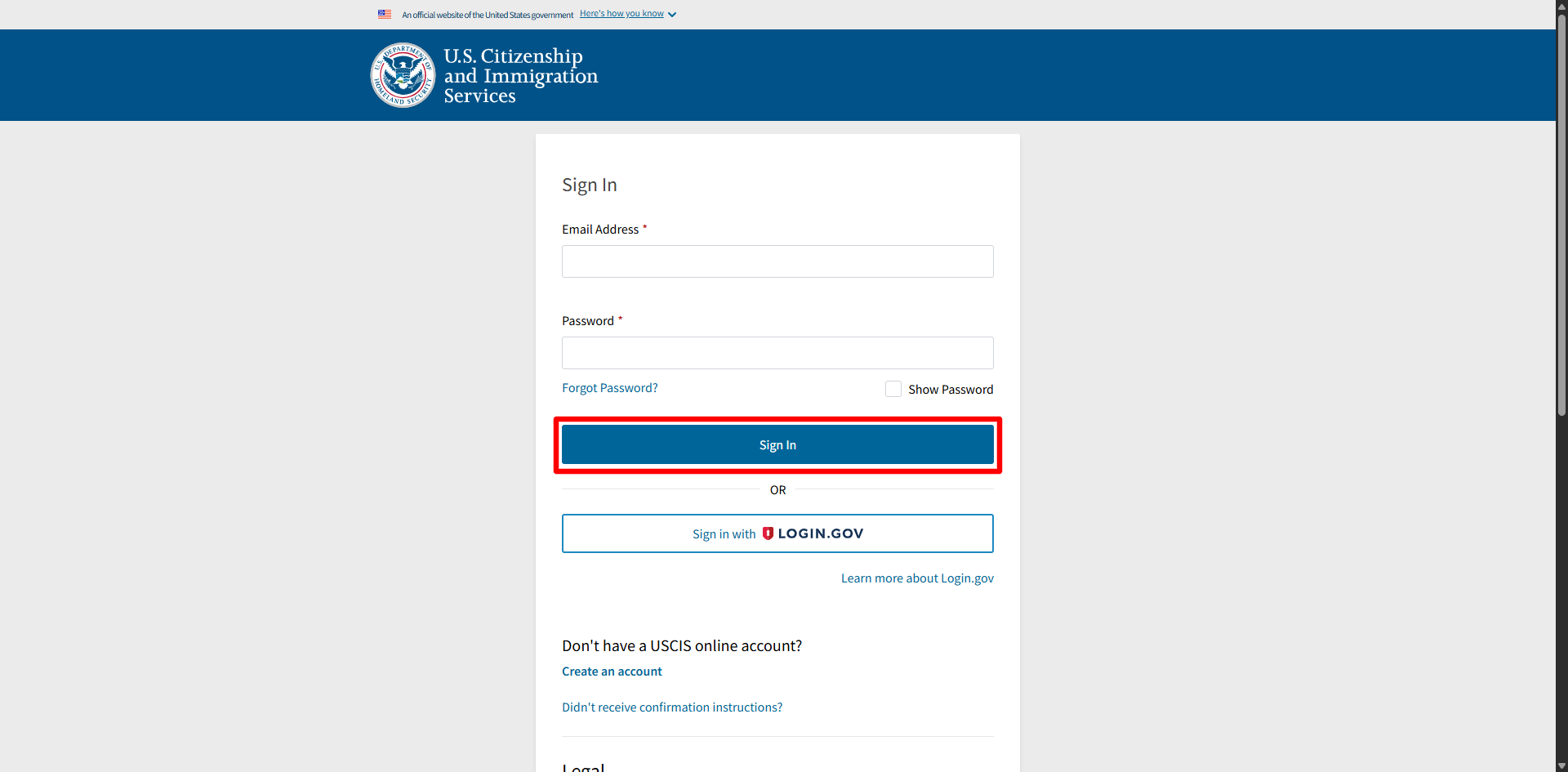
USCIS sign-in with email, password, and verification code. -
Let the notices load
As soon as you are logged in, ClerqLegal starts fetching your cases and notices automatically. The Fetching Progress bar at the bottom of the page tracks how far along it is — leave the tab open until it finishes.
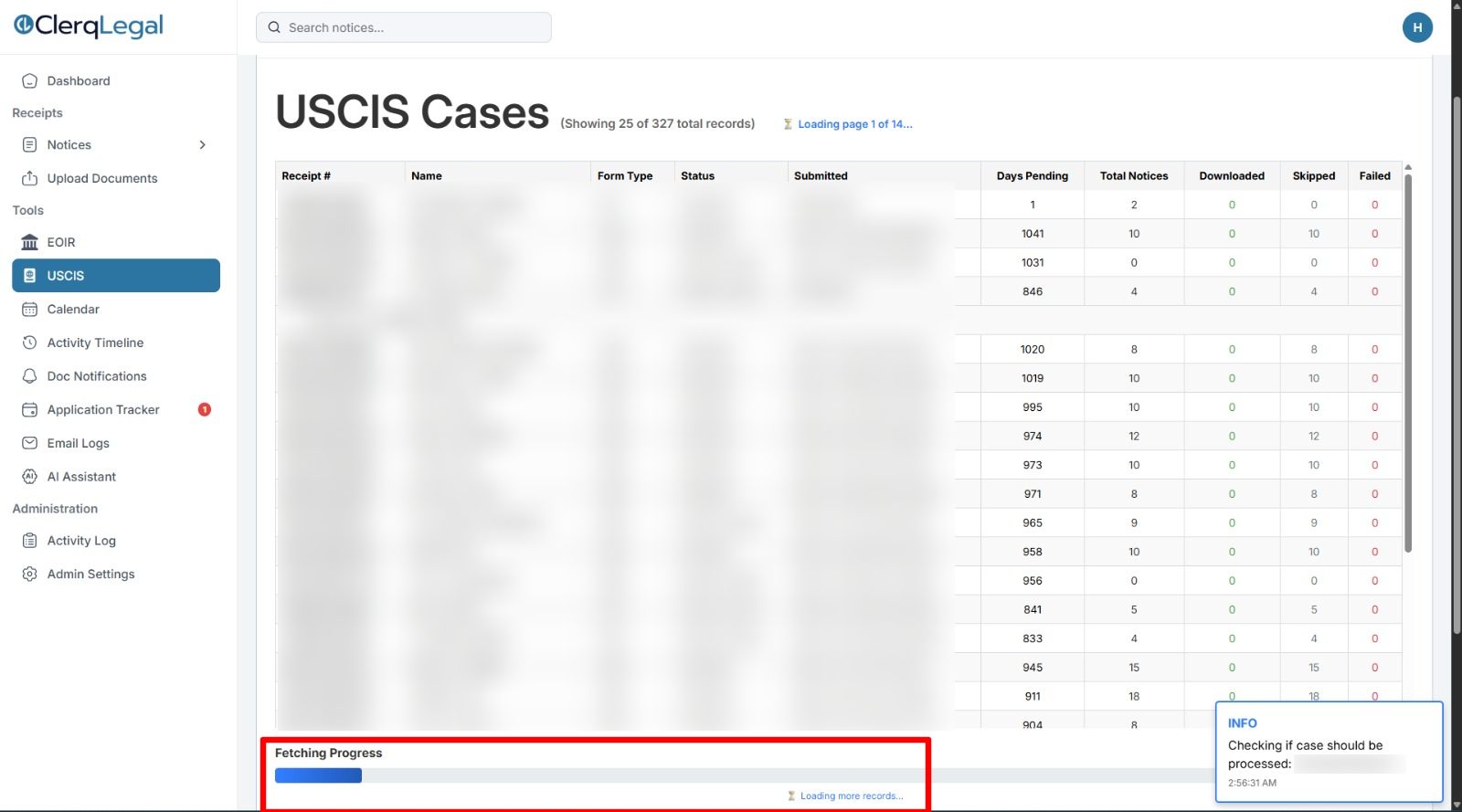
USCIS Cases page with the Fetching Progress bar running. -
Review the notices in Unprocessed Notices
Everything ClerqLegal fetches from USCIS lands under Notices › Unprocessed Notices in the sidebar. Each row shows the notice type, the person it belongs to, and its status, so you can check what came in before it is filed and sent on.
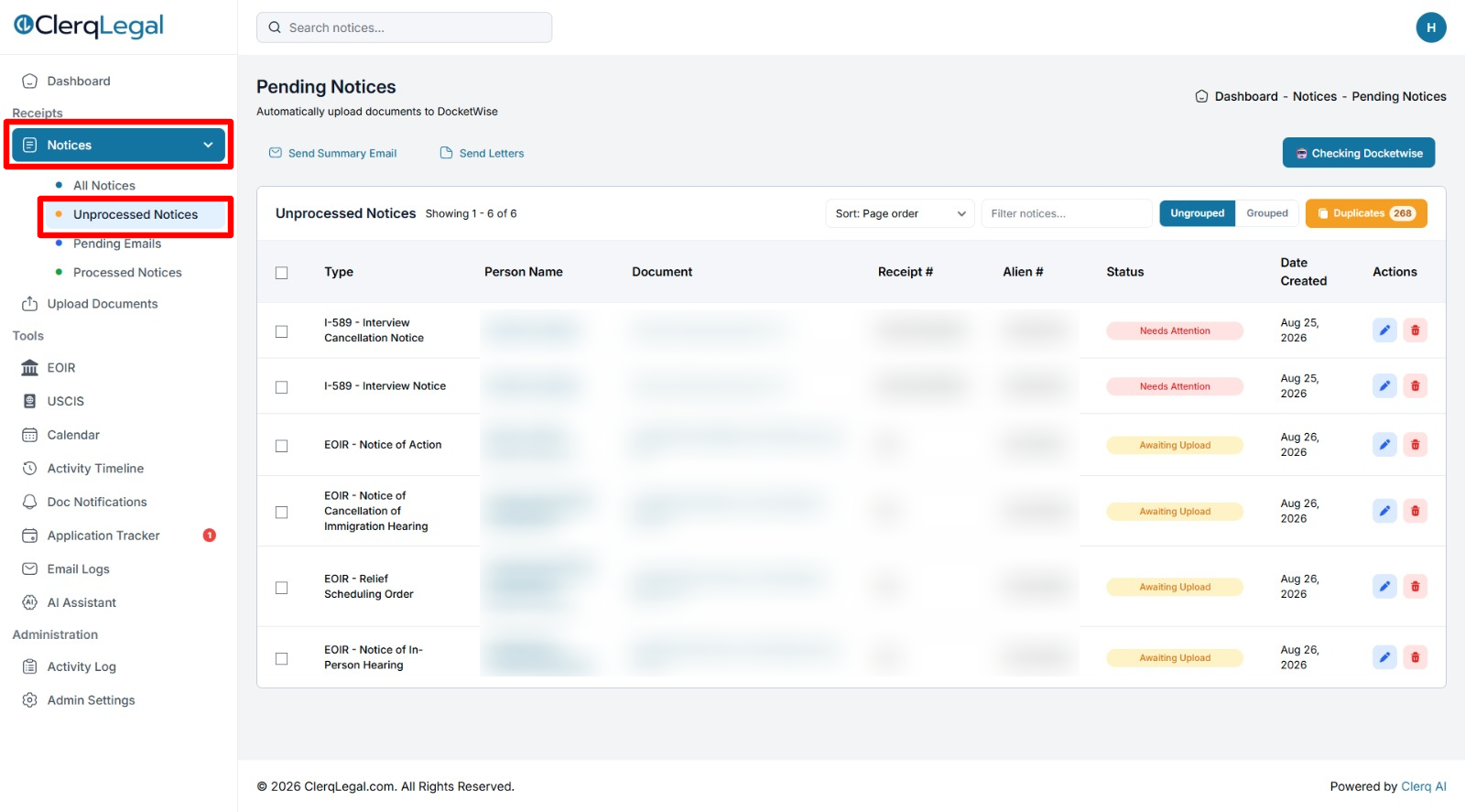
Fetched notices appear under Notices › Unprocessed Notices. -
Turn Skip PDF download back off
Once the first fetch finishes, open the ClerqLegal extension again, untick Skip PDF download, and click Save settings. From now on ClerqLegal downloads the PDF for every new notice.
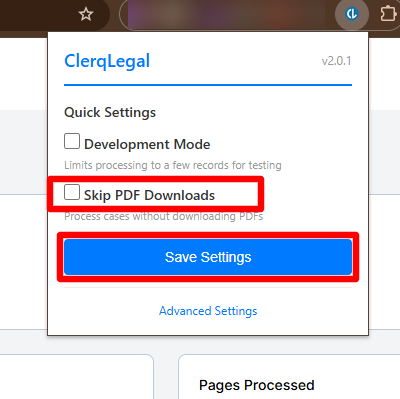
ClerqLegal extension: untick Skip PDF download and click Save settings.
 Set up Gmail forwarding
 Manage calendar rules
 Edit email templates
 Dropbox