
Edit Email Templates
Customize the client emails ClerqLegal sends in English, Spanish, Armenian, and Arabic, so they match your firm's voice.
-
Open the Email Templates tab
In the left sidebar under Administration, open Admin Settings, then select the Email Templates tab. You'll see every template your firm has configured.
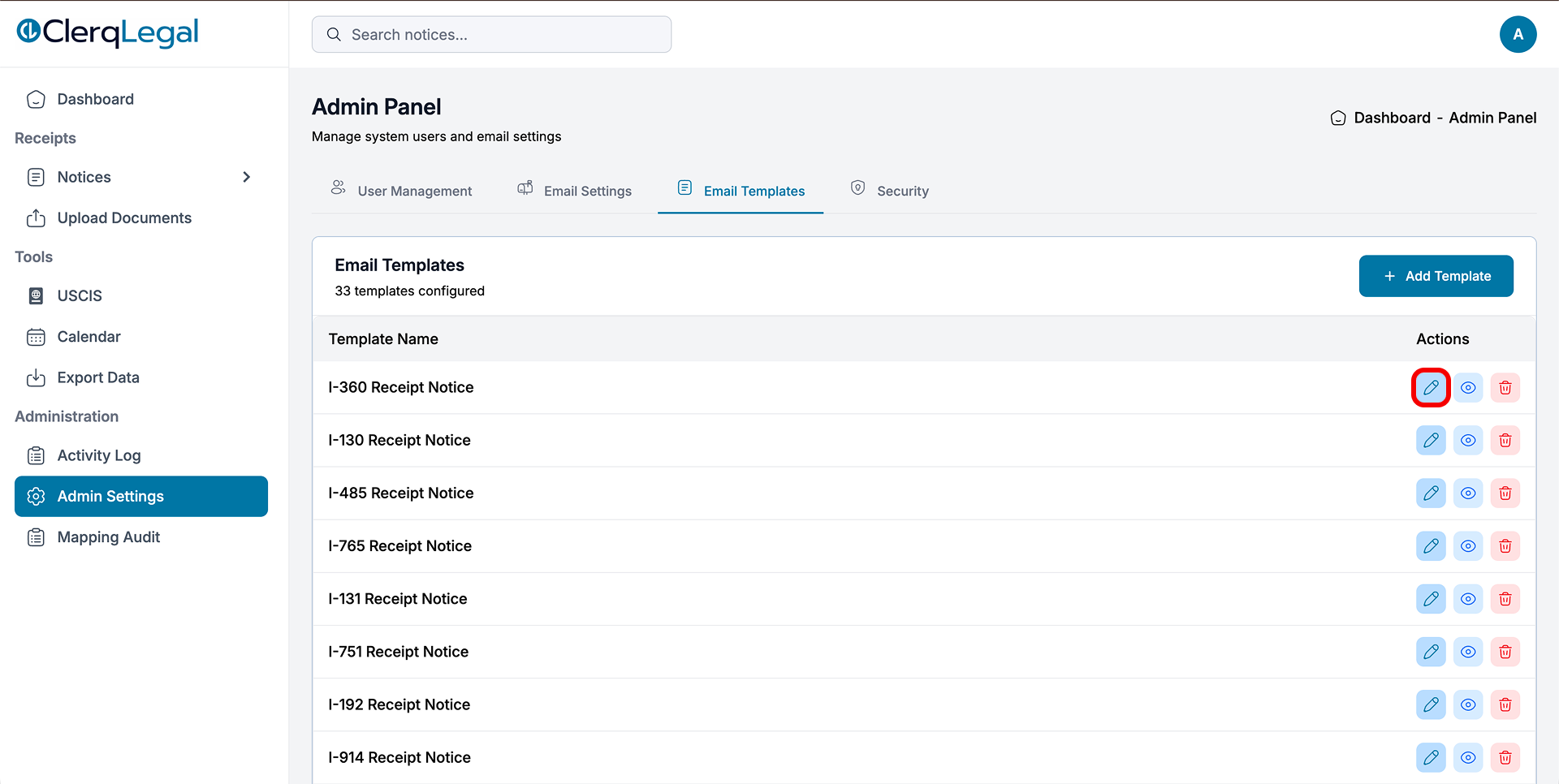
Admin Settings → Email Templates: the list of templates, with edit / preview / delete actions. -
Edit a template (or add a new one)
In the Actions column, click the pencil (edit) icon next to the template you want to change. To create a brand-new template instead, click + Add Template at the top right.
-
Name it descriptively, then edit the content
In the Edit Template window, give it a clear Template Name (e.g. "I-360 Receipt Notice") so the AI can match it to the right notice. Switch between the English, Spanish, Armenian, and Arabic tabs and edit the body with the rich-text toolbar. Use placeholders like [Client Name] and [I-360 Receipt#] where personal details should go.
Bad: "Customer notification template" · Good: "I-360 Receipt Notice"
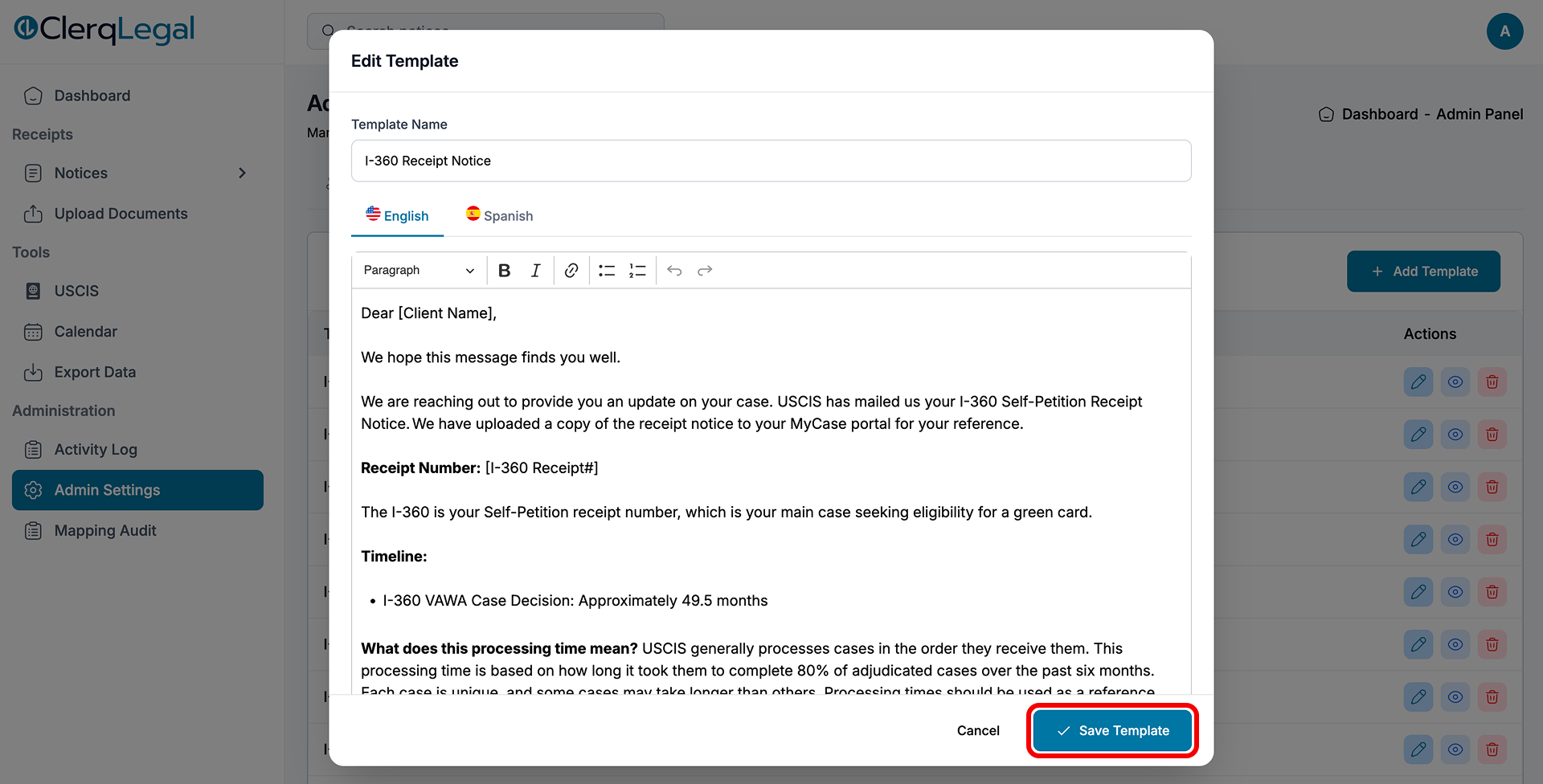
The Edit Template window: name, language tabs, and rich-text editor. -
Save the template
Click Save Template at the bottom of the window to apply your changes.
-
Confirm it saved
A green "Template … saved successfully!" banner appears at the top of the Admin Panel.

Success confirmation after saving.
Why naming matters
ClerqLegal's AI chooses which template to use based on its name. Descriptive names like "Biometric Appointment" or "RFE Received" lead to better automatic matches.
 Google Drive
 OneDrive
 Manage calendar rules